Scratch Coding: Why 90 Million Kids Started Programming Here
Quick Summary
Scratch has taught more kids to code than any other platform. We tested it extensively with beginners aged 8-16 to understand why it remains the gold standard for introducing programming concepts through creative projects.
Tags
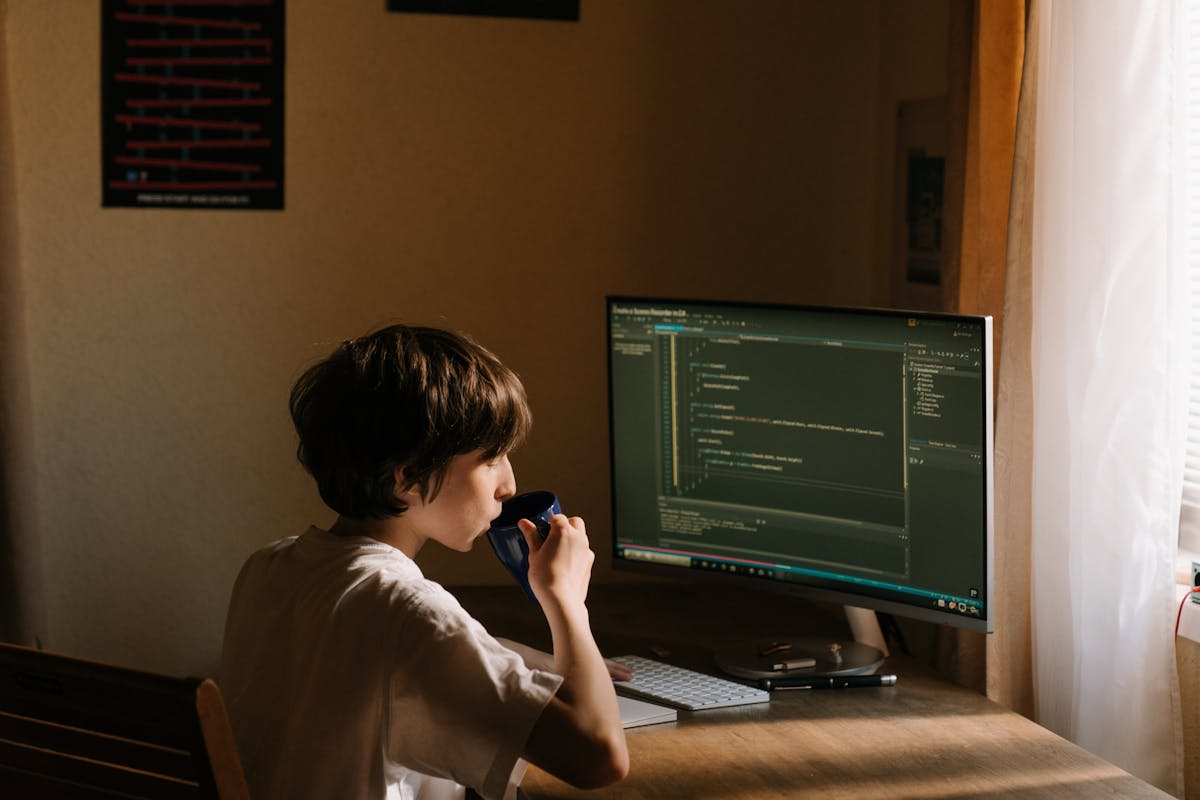
When MIT’s Lifelong Kindergarten Group set out to create a programming language for kids, they had a radical idea: what if coding could be as easy as snapping LEGO bricks together? That idea became Scratch, and it has since introduced over 90 million kids to programming concepts through games, animations, and interactive stories.
But with dozens of coding platforms now competing for attention, is Scratch still the best place for kids to start their programming journey? After testing it with beginners aged 8-16 and comparing it to modern alternatives, here’s what we discovered.
What Makes Scratch Different?
Scratch isn’t just another coding platform—it’s a complete creative environment designed specifically for young learners. Instead of typing cryptic commands that can break with a single typo, kids drag and drop colorful blocks that snap together like puzzle pieces.
Core Features:
- Visual block-based programming with no typing required
- Instant visual feedback as projects come to life
- Massive online community with 100+ million shared projects
- Built-in sprite editor for creating characters and backgrounds
- Sound and music tools for adding audio to projects
- Completely free with no premium features or ads
- Works in any browser with no downloads required
The genius of Scratch lies in its simplicity. By eliminating syntax errors and making code visual, kids focus on learning programming logic rather than memorizing commands.
How Scratch Compares to Other Coding Platforms
Since we recently reviewed the best coding apps for kids, let’s examine how Scratch stacks up against popular alternatives.
Scratch vs. Code.org
Code.org offers structured courses with video tutorials and challenges, making it excellent for classroom settings. However, it’s less flexible for creative exploration.
| Feature | Scratch | Code.org |
|---|---|---|
| Creative Freedom | ✅ Unlimited | ⚠️ Guided lessons |
| Community Sharing | ✅ Massive | ❌ Limited |
| Project Types | ✅ Games, art, music | ⚠️ Mainly games |
| Learning Structure | ⚠️ Self-directed | ✅ Step-by-step |
| Age Range | 8-16+ | 4-18 |
Best use: Scratch for creative kids who learn by exploring; Code.org for structured curriculum learning.
Scratch vs. Blockly (Used in Many Apps)
Blockly is Google’s block-based programming framework used in many coding apps. While similar to Scratch visually, it lacks Scratch’s creative tools and community.
Scratch advantages:
- Built-in sprite and sound editors
- Massive project library for inspiration
- Strong community support and remixing culture
- More artistic and musical capabilities
Blockly advantages:
- Often transitions to text-based languages
- Integrated into specific learning paths
- Sometimes offers mobile apps
Scratch vs. Tynker
Tynker offers a similar block-based experience but with paid premium content and mobile apps.
| Feature | Scratch | Tynker |
|---|---|---|
| Cost | Free forever | $10-20/month |
| Platform | Web browser | Web + mobile apps |
| Project Sharing | Open community | Subscription required |
| Creative Tools | Strong | Very strong |
| Guided Learning | Community tutorials | Professional courses |
Verdict: Scratch wins on accessibility and cost; Tynker offers more structured learning paths for families willing to pay.
What We Loved About Scratch
1. Zero Barrier to Entry
No account needed to start creating. Kids can begin building projects immediately and only need to register when they want to save work or share creations. This eliminates friction that stops many kids before they even begin.
Real experience: Our 9-year-old tester went from never coding to creating her first animation in 15 minutes. The instant success built confidence that carried through more complex projects.
2. Learn by Remixing
Scratch’s “remix” culture encourages kids to open any project, see how it works, and modify it. This approach mirrors how professional programmers learn—by reading and adapting existing code.
One 12-year-old boy told us: “I wanted to make a space game but didn’t know how. I found one, clicked ‘See Inside,’ and learned how the rocket movement worked. Then I made my own version with different planets.”
3. Immediate Visual Feedback
Unlike text-based programming where bugs can be mysterious, Scratch shows exactly what each block does. Kids see sprites move, colors change, and sounds play as they add code blocks. This immediate feedback loop accelerates learning.
4. Cross-Curricular Learning Opportunities
Scratch isn’t just about coding—it’s a tool for creative expression:
- Math: Create graphing calculators, geometry art, or fraction games
- Science: Simulate ecosystems, physics experiments, or solar system models
- Art: Design interactive art installations or animation stories
- Music: Compose songs, build drum machines, or create music visualizers
- Language Arts: Develop interactive stories, poetry generators, or vocabulary games
For creative learners who might not be excited by pure programming, Scratch offers countless ways to explore interests while developing coding skills. Check out our guide on creative writing apps for complementary tools.
5. Vibrant Global Community
With over 90 million registered users, Scratch’s community is unmatched. Kids can:
- Browse millions of shared projects for inspiration
- Follow favorite creators
- Participate in monthly challenges
- Get help in forums from other young programmers
- Collaborate on projects with friends worldwide
The community moderation keeps interactions safe and supportive, making it appropriate for younger users.
What Could Be Better
1. Limited Transition to Text-Based Coding
While Scratch teaches excellent programming concepts, it doesn’t prepare kids for text-based languages like Python or JavaScript. Some students struggle when making this transition because typing code feels completely different from dragging blocks.
Solution: After kids are comfortable with Scratch, consider introducing Python through platforms that bridge visual and text-based coding.
2. Performance Limitations
Complex projects with many sprites and effects can slow down, especially on older devices. Advanced users eventually outgrow Scratch’s capabilities.
When kids are ready for more: Scratch 3.0 improved performance significantly, but truly ambitious programmers will eventually need more powerful tools.
3. Mobile Experience Is Limited
While Scratch works in mobile browsers, it’s clearly designed for desktop use. The touch interface feels cramped, and editing on small screens is frustrating.
Scratch Jr. (ages 5-7) offers a tablet-optimized experience, but older kids need laptops or desktop computers for the full Scratch experience.
4. Minimal Structured Curriculum
Scratch provides excellent creative freedom but limited guided learning. Kids who need step-by-step instruction may feel lost without additional resources.
Workaround: The Scratch community provides thousands of tutorials, and many educators share structured curriculum guides. Parents may need to curate learning paths based on their child’s interests.
Age-Appropriate Project Ideas
Ages 8-9: Foundation Builders
Starter Projects:
- Animated greeting cards
- Simple chase games (cat catches mouse)
- Interactive quizzes about favorite topics
- Basic drawing programs
Skills learned: Sequential thinking, event handling, basic loops
Ages 10-12: Skill Developers
Intermediate Projects:
- Platform games (jumping, collecting coins)
- Quiz shows with scoring systems
- Music composers and soundboards
- Simple simulations (fish tank, garden)
Skills learned: Variables, conditionals, broadcast messages, game design
Ages 13+: Advanced Creators
Complex Projects:
- Multiplayer games
- Physics simulations (gravity, collisions)
- Artificial intelligence demos (pathfinding, decision trees)
- Fractal generators and mathematical art
Skills learned: Advanced algorithms, optimization, complex data management
Real Student Success Stories
Mia, Age 11: From Player to Creator
“I used to just play games, but Scratch made me want to create them. I started with a simple maze game and now I’m working on an RPG with different levels and characters. My friends at school play my games and give me ideas for improvements. It’s so cool seeing people enjoy something I made!”
Carlos, Age 14: STEM Competition Winner
“I used Scratch to create a simulation of climate change impacts for my science fair project. The judges were impressed that I could program something that demonstrated real scientific concepts. Scratch helped me win first place, and now I’m learning Python to create even more advanced simulations.”
Parent Perspective: Lisa, Mom of Three
“My kids span ages 7, 10, and 13, and they all use Scratch at different levels. My youngest started with Scratch Jr., my middle child creates stories and games, and my teen is making sophisticated projects that teach her algebra concepts. The fact that it’s completely free with no hidden costs is incredible.”
Integration with Other Learning
Scratch pairs beautifully with hands-on learning activities. Kids who enjoy building with STEM kits often love creating Scratch projects that simulate their physical creations. For example:
- Build a robot with LEGO, then program a virtual version in Scratch
- Create chemistry experiments with kits, then simulate reactions in Scratch
- Study solar system with models, then build an interactive planetarium
This connection between physical and digital learning reinforces concepts in multiple ways.
Getting Started: Parent Guide
Week 1: Exploration
- Visit scratch.mit.edu and explore featured projects together
- Click “Create” to open the project editor
- Follow built-in tutorial on making sprites move
- Remix a simple project to understand how code blocks work
- Save favorite projects for inspiration
Week 2-3: Guided Projects
- Choose 2-3 tutorial projects that match your child’s interests
- Encourage experimentation by changing colors, sounds, or behaviors
- Celebrate small wins when features work correctly
- Debug together when things don’t work as expected
Week 4+: Independent Creation
- Let your child choose projects based on personal interests
- Set aside dedicated coding time (30-60 minutes, 2-3 times weekly)
- Join the community by creating an account and sharing projects
- Connect with other young programmers through Scratch forums
Parent Tips for Success
Do:
- Celebrate creativity over perfection
- Ask your child to teach you what they’ve learned
- Share completed projects with family and friends
- Connect coding to other interests (art, music, storytelling)
Don’t:
- Expect immediate mastery—programming takes practice
- Compare your child’s progress to others
- Force coding if genuine interest isn’t developing
- Worry about “proper” programming—Scratch teaches real concepts
Screen Time Considerations
While Scratch involves screens, it’s creative screen time rather than passive consumption. Kids are problem-solving, creating, and thinking logically—very different from watching videos or scrolling social media.
Healthy Balance Tips:
- Set time limits (45-60 minute sessions work well)
- Encourage breaks every 20-30 minutes
- Balance Scratch with outdoor play and physical activities
- Use completed projects as conversation starters during family time
Scratch for Different Learning Styles
Visual Learners
Scratch is ideal for visual learners who think in images and diagrams. The color-coded blocks and immediate visual feedback align perfectly with visual processing strengths.
Kinesthetic Learners
The drag-and-drop interface and immediate results appeal to kids who learn by doing. The trial-and-error nature of debugging provides hands-on problem-solving.
Verbal Learners
While less naturally suited to Scratch, verbal learners can create storytelling projects, design quiz games, or use Scratch to explain concepts to others—playing to their strengths.
Creative Learners
For kids who excel in art, music, or creative writing, Scratch provides a digital canvas. These students may resist traditional programming but thrive when coding becomes a tool for creative expression.
When to Transition Beyond Scratch
Signs your child is ready for text-based coding:
- Creating complex projects that push Scratch’s limits
- Expressing curiosity about “real” programming
- Comfortable with variables, loops, and conditional logic
- Age 12+ with strong Scratch skills
Good next steps:
- Python with Turtle graphics (similar visual feedback)
- JavaScript for web development
- App development with MIT App Inventor
- Game development with Unity
Scratch in Homeschool Curriculum
Scratch integrates naturally into homeschool programs across subjects:
Computer Science Track:
- Weeks 1-4: Basic concepts and simple animations
- Weeks 5-8: Interactive stories and games
- Weeks 9-12: Complex projects in student’s interest area
- Assessment: Final project demonstrating learned concepts
Cross-Curricular Integration:
- Math: Create programs that teach younger siblings math concepts
- Science: Simulate experiments or natural phenomena
- History: Build interactive timelines or historical recreations
- Language Arts: Develop choose-your-own-adventure stories
The Value Proposition
Cost: Free forever, no hidden fees or premium upsells Time investment: 30-60 minutes, 2-3 times per week for meaningful progress Educational value: Teaches logic, problem-solving, creativity, and computational thinking Long-term benefit: Foundation for advanced programming and STEM careers
Compared to paid coding classes:
- Private tutoring: $50-100/hour
- Coding camps: $200-500/week
- Online courses: $15-30/month
- Scratch: $0
While structured classes offer benefits, Scratch provides excellent self-directed learning for motivated kids, with parent support.
Our Verdict
Scratch earns 4.7/5 stars as the best starting point for young programmers. Its combination of creative freedom, visual programming, vibrant community, and zero cost make it unmatched for introducing coding concepts.
Perfect for:
- Kids aged 8-16 with no coding experience
- Creative learners who love art, music, or storytelling
- Families wanting free, high-quality coding education
- Homeschoolers seeking flexible STEM curriculum
- Kids who learn best through exploration and experimentation
Consider alternatives if:
- Your child needs highly structured, step-by-step instruction
- You want a mobile-first coding experience
- Your student is ready for text-based programming
- You prefer curriculum with built-in assessments
Final Recommendation
Start every young programmer’s journey with Scratch. The skills learned—logical thinking, problem-solving, creativity, and persistence—transfer to any future programming language while building confidence through immediate success.
Getting started is simple: Visit scratch.mit.edu, click “Create,” and let your child’s creativity lead the way. No preparation, no cost, no pressure—just pure creative coding exploration.
For kids who discover a passion for programming through Scratch, you’ve unlocked a skill set that will serve them throughout their education and career. For those who don’t, they’ve still learned valuable logical thinking and problem-solving skills applicable to any field.
Ready to start your child’s coding journey? Visit Scratch and begin creating today.
What Parents Are Saying
Real experiences from parents who've used this tool with their children
Loading parent reviews...
No reviews yet
Be the first parent to share your experience with this educational tool!
Get Our Monthly Picks
Discover the best new educational tools for your kids. No spam, unsubscribe anytime.
Related Reviews
Browse All Reviews
Discover more educational tools