10 Best Coding Apps for Kids in 2026 (By Age Group)
Quick Summary
From ScratchJr to Swift Playgrounds, we tested the most popular coding apps with real kids aged 4-16. Here are the 10 that actually teach programming — organized by age group with honest pros, cons, and pricing.
Tags
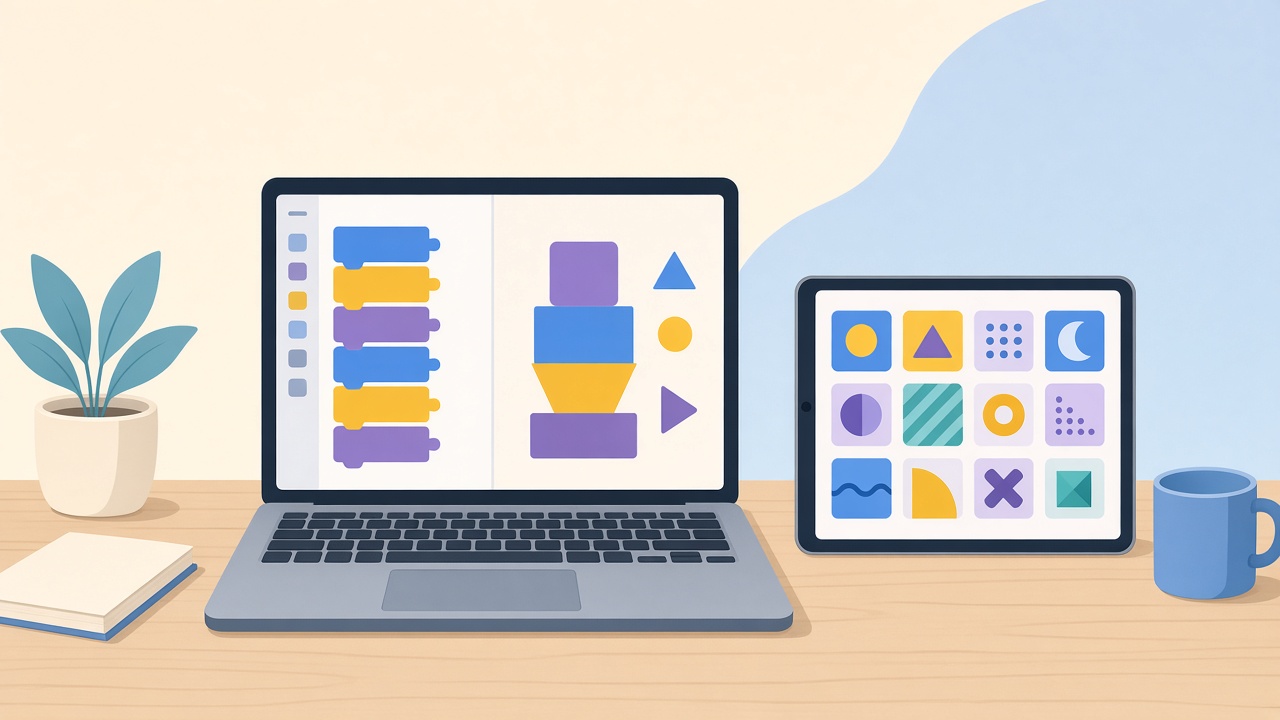
Teaching kids to code has never been more accessible — or more confusing for parents trying to pick the right tool. There are dozens of coding apps on the market, each claiming to turn your child into a future software engineer. Some deliver on that promise. Others are little more than dressed-up puzzle games with a “coding” label slapped on top.
We spent three months testing the most popular coding apps with kids aged 4 through 16. We watched what kept them engaged, what frustrated them, where they actually learned programming concepts, and where they just chased points. The result is this guide: 10 coding apps that genuinely teach programming, organized by age group so you can find the right fit for your child.
Why Coding Still Matters in 2026
You might wonder whether AI tools like Copilot and ChatGPT have made learning to code pointless. The short answer: absolutely not. If anything, understanding how software works is more important than ever, because kids who grasp programming logic can direct AI tools far more effectively than those who can’t.
Beyond career preparation, coding builds skills that transfer everywhere:
- Logical reasoning — breaking big problems into smaller, solvable steps
- Debugging mindset — learning that failure is a normal part of the process, not a dead end
- Creative expression — building games, animations, and interactive art from scratch
- Mathematical thinking — variables, loops, and conditionals reinforce math concepts in a concrete way
- Persistence — few activities teach “try, fail, revise, try again” as naturally as programming
The apps below are ranked within each age group, but every app on this list earned its place. The “best” choice depends on your child’s interests, learning style, and budget.
Ages 4–7: Visual Block Coding for Beginners
At this age, kids can’t type reliably and many are still learning to read. The best apps for young children use drag-and-drop blocks, colorful characters, and immediate visual feedback. No syntax, no typing, no frustration.
1. ScratchJr
Ages: 5–7 | Platforms: iPad, Android tablets, Chromebook | Cost: Free
ScratchJr is the younger sibling of MIT’s legendary Scratch platform, designed specifically for children who can’t yet read fluently. Kids snap together colorful programming blocks to make characters move, dance, jump, and talk — building interactive stories and simple games in the process.
What makes ScratchJr special is the creative freedom it offers. Unlike apps that funnel kids through predetermined puzzles, ScratchJr gives them a blank canvas and a toolbox. Our testers spent hours creating elaborate stories with multiple characters and scenes, and the programming concepts (sequencing, loops, events) were absorbed naturally rather than drilled.
Pros:
- Completely free with no ads or in-app purchases
- No reading required — everything is visual and intuitive
- Encourages open-ended creativity rather than just following instructions
- Developed by MIT and Tufts University with rigorous research backing
- Simple enough for 5-year-olds, deep enough for 7-year-olds
Cons:
- Limited to tablets — no desktop or phone version
- The interface can feel cramped on smaller screens
- No online community or project sharing (by design, for safety)
- Kids may outgrow it within 6–12 months
Best for: First-time coders aged 5–7 who enjoy storytelling and creative play. If your child has never touched a coding app, start here.
2. Kodable
Ages: 4–7 | Platforms: iPad, web browser | Cost: Free (limited), $9.99/month or $79.99/year for full access
Kodable takes the opposite approach to ScratchJr: structured, curriculum-driven lessons disguised as a game. Kids guide a fuzzy alien character (a “fuzz”) through mazes by dragging directional arrows and condition blocks. The game introduces sequences, loops, conditionals, and even functions — all before a child finishes first grade.
The structured progression is Kodable’s biggest strength. Each level builds on the last, and the app does an excellent job of scaffolding complexity so kids feel challenged but not overwhelmed. Teachers love it, and there’s a robust classroom management dashboard for educators.
Pros:
- Exceptionally well-structured curriculum with clear learning progression
- Works for kids as young as 4 with minimal parent involvement
- Classroom-friendly with teacher dashboards and standards alignment
- Gradually transitions from drag-and-drop to typing simple code
- Engaging game mechanics that reward genuine problem-solving
Cons:
- The free version is very limited — most content requires a subscription
- Less creative freedom than ScratchJr; kids follow prescribed paths
- iPad-centric — the web version has fewer features
- The subscription cost adds up, especially for families on a budget
Best for: Parents and teachers who want a structured, lesson-by-lesson coding curriculum for young learners. Great for kids who thrive with clear goals and guided progression.
3. Code.org (Pre-Reader Courses)
Ages: 4–7 | Platforms: Web browser (any device) | Cost: Free
Code.org is best known for its Hour of Code events, but its full K-5 curriculum is one of the most comprehensive free coding resources available. The pre-reader courses (Course A and Course B) use drag-and-drop blocks and feature characters from Angry Birds, Frozen, and Minecraft to teach sequencing, loops, and debugging.
What sets Code.org apart at this age level is accessibility. It runs in any web browser on any device — no app downloads, no account required to start, no paywall. The lessons are short (15–20 minutes each), making them easy to fit into a busy family schedule. The tradeoff is that it feels more like school than play, which works for some kids and not others.
Pros:
- Completely free — everything, for everyone, forever (their stated mission)
- Works on any device with a web browser, including older laptops and Chromebooks
- Licensed characters (Minecraft, Frozen, Star Wars) grab kids’ attention
- Well-structured courses aligned with CS education standards
- Enormous teacher community with lesson plans and support
Cons:
- Puzzle-heavy format can feel repetitive for creative kids
- Less open-ended than ScratchJr — kids solve problems rather than create freely
- Some branded activities feel more like marketing tie-ins than deep learning
- Video tutorials assume an adult or teacher is available to help
Best for: Families looking for a completely free, no-commitment way to introduce coding. Also ideal for teachers seeking a standards-aligned classroom curriculum.
Ages 8–12: Real Programming Concepts
This is the sweet spot for coding education. Kids at this age can read, think abstractly, and handle moderate complexity. The apps in this group teach genuine programming concepts — variables, conditionals, loops, functions, and event handling — while keeping the experience visual and engaging.
4. Scratch (by MIT)
Ages: 8–16 | Platforms: Web browser, desktop app | Cost: Free
Scratch is the gold standard, and for good reason. Developed by MIT’s Lifelong Kindergarten Group, it’s a full-fledged visual programming environment where kids create games, animations, interactive stories, and music projects by snapping together color-coded blocks. With over 100 million registered users and a massive library of shared projects, it’s also a social platform where kids learn by remixing and building on each other’s work.
Every fundamental programming concept is represented in Scratch: variables, conditionals, loops, functions (custom blocks), event handling, lists, and even basic concurrency through parallel scripts. Kids learn all of this without ever typing a semicolon. The online community is moderated and kid-safe, and the culture of sharing and remixing means kids constantly discover new techniques by exploring other people’s projects.
Pros:
- Completely free with no ads, no premium tier, no catches
- Teaches every major programming concept through visual blocks
- Massive, moderated online community with millions of shared projects
- Built-in sprite editor, paint tools, and sound recording
- Runs in any browser — no installation needed
- Extensive documentation, tutorials, and educator resources
Cons:
- Self-directed learning can feel aimless for kids who prefer structure
- The block-based paradigm doesn’t directly translate to text-based languages
- Project quality in the community varies wildly — lots of low-effort remixes
- No built-in curriculum or progression (you need external resources for that)
Best for: Creative, self-motivated kids aged 8–14 who want to make their own games and animations. The single best free coding tool for this age group, period.
5. Tynker
Ages: 7–14 | Platforms: Web, iPad, Android | Cost: Free (limited), $20/month or $120/year for full access
Tynker positions itself as the all-in-one coding platform, and it largely delivers. It starts with block-based coding similar to Scratch, then gradually transitions kids to real programming languages including Python, JavaScript, and HTML/CSS. The standout feature is Minecraft modding: kids write code that directly affects their Minecraft worlds, which is an incredibly powerful motivator.
The curriculum is vast — over 5,000 lessons covering game design, web development, data science, and even AR/VR basics. Tynker also offers live online classes and coding camps, making it closer to a full coding school than a standalone app.
Pros:
- Smooth progression from visual blocks to Python and JavaScript
- Minecraft modding integration is a massive engagement hook
- Structured, self-paced courses with clear learning paths
- Includes game design, web development, and app creation
- Regular content updates keep the platform current
Cons:
- Full access is expensive — $120–$240/year depending on the plan
- The free tier is too limited to be genuinely useful
- The sheer volume of content can be overwhelming without guidance
- Some courses feel surface-level rather than deep
- The Minecraft integration requires a separate Minecraft license
Best for: Families willing to invest in a comprehensive, long-term coding curriculum. Especially strong for Minecraft-obsessed kids aged 8–13 who need that extra motivation to engage with programming. Tynker’s modding path needs a regular Minecraft license. If you are choosing that against the classroom version, read the Minecraft Education and regular Minecraft price comparison.
6. Lightbot
Ages: 8–12 | Platforms: iOS, Android, web | Cost: $2.99 (one-time purchase)
Lightbot is the minimalist’s choice. It’s a single-purchase puzzle game — no subscriptions, no accounts, no social features — where kids program a robot to light up tiles on a grid. That sounds simple, but the puzzles introduce procedures (functions), loops, and conditionals with surprising elegance.
What Lightbot does exceptionally well is teach computational thinking without any explicit “code” on screen. Kids plan multi-step solutions, identify repeating patterns, and create reusable procedures, all through spatial reasoning and tile manipulation. It’s the closest thing to pure algorithmic thinking in app form.
Pros:
- One-time purchase — no subscriptions, no ads, no in-app purchases
- Beautifully designed puzzles that teach functions and loops intuitively
- Excellent for building algorithmic thinking and spatial reasoning
- Minimal interface means no distractions
- Works offline — great for car trips and airplane mode
Cons:
- Limited scope — it teaches thinking patterns, not actual coding
- No creative component — kids solve predetermined puzzles only
- Short — most kids complete it in 5–10 hours
- No community, no sharing, no project creation
- Hasn’t been significantly updated recently
Best for: A low-cost, no-commitment introduction to computational thinking. Great as a supplement to a more creative tool like Scratch, or as a travel-friendly coding activity.
Ages 12–16: Transition to Real Languages
By this age, kids are ready for text-based programming. The challenge is bridging the gap between visual blocks (which feel like toys) and professional coding environments (which feel intimidating). These apps handle that transition thoughtfully.
7. Swift Playgrounds
Ages: 12–16 | Platforms: iPad, Mac | Cost: Free
Apple’s Swift Playgrounds teaches the Swift programming language — the same language used to build iOS and macOS apps — through interactive 3D puzzles. Kids write real Swift code to guide a character named Byte through increasingly complex challenges involving loops, functions, parameters, and object-oriented concepts.
The magic is in the execution. Each line of code produces immediate, visible results in a colorful 3D world. Error messages are friendly and helpful. And once kids master the basics, they can build actual apps and submit them to the App Store — a pathway that no other coding app for kids can match.
Pros:
- Teaches a real, professional programming language (Swift)
- Beautiful 3D environment with immediate visual feedback
- Clear pathway from learning exercises to building real iOS apps
- Free with no ads or premium features
- Excellent error messages and hints that teach rather than frustrate
- Regular updates with new content and challenges
Cons:
- Apple ecosystem only — requires an iPad or Mac
- Swift is Apple-specific; skills don’t directly transfer to Android or web development
- The jump from guided puzzles to freeform app building is steep
- Some lessons move too quickly for kids without prior coding experience
- Requires a relatively recent device for smooth performance
Best for: Kids aged 12+ in Apple households who are interested in building real apps. The most polished bridge from “coding app” to “actual software development” available today.
8. Grasshopper (by Google)
Ages: 12–16 | Platforms: iOS, Android, Web | Cost: Free
Grasshopper teaches JavaScript — the language that powers the interactive web — through bite-sized lessons on your phone. Lessons take 5–10 minutes, making it easy to practice daily. The app introduces real JavaScript syntax gradually, starting with function calls and building to callbacks, arrays, and D3.js data visualization.
Google designed Grasshopper for adult beginners, but we found it works well for motivated kids aged 12 and up. The lessons are clear, the pacing is gentle, and the immediate visual output (animations, drawings, interactive art) keeps things engaging. It’s not a toy — kids are writing real JavaScript that would run in any browser.
Pros:
- Completely free with no premium tier
- Teaches real JavaScript syntax used in professional web development
- Mobile-first design makes daily practice easy and habitual
- Visual output (animations, drawings) keeps abstract code tangible
- Gentle learning curve with excellent explanations
- Cross-platform — works on any phone, tablet, or computer
Cons:
- Originally designed for adults, so the tone isn’t kid-specific
- Limited scope — covers JavaScript basics but not full web development
- No creative sandbox or project-building tools
- No community features or project sharing
- Content feels thin once you complete all the lessons (10–15 hours total)
Best for: Teens who want a gentle, free introduction to real JavaScript. Works best as a stepping stone to more comprehensive platforms like freeCodeCamp or Codecademy.
9. Mimo
Ages: 13–16 | Platforms: iOS, Android, Web | Cost: Free (limited), $12.99/month or $79.99/year
Mimo has evolved from a simple learn-to-code app into one of the most polished programming education platforms available. It offers structured paths in Python, JavaScript, HTML/CSS, SQL, and more — with each path building toward a specific project or career skill. The AI-powered feedback system (new in 2025) provides personalized hints and explanations when kids get stuck.
What sets Mimo apart for older kids is its emphasis on practical, real-world output. Instead of solving abstract puzzles, kids build websites, create data visualizations, automate tasks, and develop simple apps. The daily streak system and bite-sized lesson format (borrowed from Duolingo’s playbook) encourage consistent practice.
Pros:
- Covers multiple languages: Python, JavaScript, HTML/CSS, SQL, and more
- Project-based learning with practical, real-world applications
- AI-powered hints provide personalized help when kids get stuck
- Excellent daily habit-building features (streaks, reminders, short lessons)
- Professional-quality content that bridges to adult learning
- Active community and forums for help and motivation
Cons:
- Most content requires a paid subscription
- The free tier is very restrictive — barely enough to evaluate the platform
- Designed for adults, so younger teens may find the projects less exciting
- The gamification (streaks, XP) can become the focus instead of actual learning
- Some paths feel rushed in their coverage of complex topics
Best for: Motivated teens aged 14+ who want to learn multiple programming languages with a structured, habit-building approach. Particularly strong for Python and web development.
10. Replit
Ages: 13–16 | Platforms: Web browser (any device) | Cost: Free (generous tier), $7/month for Hacker plan
Replit isn’t a traditional coding app for kids — it’s a full cloud-based development environment that happens to be incredibly accessible. Kids can write, run, and share code in over 50 programming languages directly in a browser, with zero setup required. The addition of Replit AI (an integrated coding assistant) in 2025 means kids can get real-time help and explanations as they build projects.
We include Replit because it’s where serious teen coders end up after they’ve outgrown block-based tools and guided lessons. It’s the real thing: a professional-grade environment with collaboration features, hosting, and version control. The 100 Days of Code curriculum provides structured learning for those who want it, while the sandbox environment lets self-directed learners build anything they can imagine.
Pros:
- Full development environment — supports 50+ languages, no setup required
- Free tier is genuinely generous for individual learners
- Built-in AI assistant helps kids learn and debug in real time
- Multiplayer collaboration lets kids code together in real time
- Can host and share projects with a public URL instantly
- Active community with templates, tutorials, and open-source projects
Cons:
- Not designed for kids — no parental controls or kid-safe community moderation
- Can be overwhelming for beginners without prior coding experience
- The free tier has performance limitations for larger projects
- Requires a stable internet connection at all times
- The breadth of options can lead to decision paralysis for new users
Best for: Teens aged 14+ who have graduated from beginner coding apps and are ready for a real development environment. The natural next step after Scratch, Tynker, or Swift Playgrounds.
Quick Comparison Table
| App | Ages | Cost | Languages/Approach | Platforms | Best For |
|---|---|---|---|---|---|
| ScratchJr | 5–7 | Free | Visual blocks | iPad, Android, Chromebook | Creative beginners |
| Kodable | 4–7 | Free / $9.99/mo | Visual blocks, basic syntax | iPad, Web | Structured learners |
| Code.org | 4–7 | Free | Visual blocks | Web (any device) | Budget-friendly start |
| Scratch | 8–16 | Free | Visual blocks | Web, Desktop | Creative project-builders |
| Tynker | 7–14 | Free / $20/mo | Blocks → Python, JS | Web, iPad, Android | Minecraft fans, long-term learning |
| Lightbot | 8–12 | $2.99 | Puzzle-based logic | iOS, Android, Web | Algorithmic thinking |
| Swift Playgrounds | 12–16 | Free | Swift | iPad, Mac | Aspiring iOS developers |
| Grasshopper | 12–16 | Free | JavaScript | iOS, Android, Web | JavaScript beginners |
| Mimo | 13–16 | Free / $12.99/mo | Python, JS, SQL, HTML | iOS, Android, Web | Multi-language learners |
| Replit | 13–16 | Free / $7/mo | 50+ languages | Web (any device) | Serious teen coders |
How We Evaluated These Apps
We didn’t just read feature lists. Each app was tested by real kids in the target age range over a minimum of two weeks. We evaluated based on:
- Genuine learning outcomes — Did kids understand programming concepts after using the app, or did they just learn to play a game?
- Engagement and retention — Did kids want to come back to the app voluntarily, or did they need to be nudged?
- Age appropriateness — Was the difficulty curve right for the stated age range?
- Creative potential — Could kids build original projects, or only solve pre-made puzzles?
- Value for money — For paid apps, does the content justify the cost?
What We Deliberately Left Out
A few popular apps didn’t make our list, and we want to be transparent about why:
- CodeCombat / CodeMonkey: These are decent apps, but they lean so heavily into gamification that the actual coding often takes a back seat to the game mechanics. Kids complete levels without necessarily understanding the programming concepts behind their solutions.
- Hopscotch: A solid iPad app for block coding, but it overlaps too much with Scratch while offering less depth and a much smaller community.
- Codecademy Kids: Still too new in 2026 to evaluate fairly. We’ll revisit this one in our next update.
Recommended Learning Paths
The Free Path (ages 5–16)
ScratchJr (ages 5–7) → Code.org (ages 6–8) → Scratch (ages 8–12) → Grasshopper (ages 12–14) → Replit (ages 14+)
Total cost: $0. This path covers a child’s entire coding journey from kindergarten through high school using only free tools.
The Premium Path (ages 4–16)
Kodable (ages 4–7) → Tynker (ages 7–12) → Swift Playgrounds (ages 12–14) → Mimo or Replit (ages 14+)
Total cost: ~$150–$250/year during the paid phases. More structured and guided, with smoother transitions between stages.
The Casual Explorer
Lightbot (one-time $2.99) → ScratchJr or Scratch (free) → try Swift Playgrounds or Grasshopper when curious
Total cost: $2.99. For kids who are interested but not yet committed. Low-pressure, no subscriptions, no obligations.
Tips for Parents
Start free. ScratchJr and Scratch are world-class tools that cost nothing. Don’t pay for a subscription until your child has demonstrated sustained interest over at least a few weeks.
Follow their interests. A kid who loves Minecraft will engage more with Tynker’s modding tools than with abstract puzzles. A kid who wants to make iPhone apps will light up with Swift Playgrounds. The “best” app is the one they’ll actually use.
Expect a messy process. Coding isn’t a linear march of progress. Kids will get frustrated, abandon projects halfway through, and create things that look nothing like what they intended. That’s normal. That’s learning.
Don’t overschedule it. Fifteen minutes of self-directed Scratch exploration three times a week beats a forced hour-long “coding lesson” every Saturday. Consistency matters more than duration, and intrinsic motivation matters more than both.
Sit with them sometimes. You don’t need to understand the code. Just being present, asking “what does that block do?” or “how did you make the character jump?” shows you value what they’re creating. That social reinforcement is more powerful than any gamification system.
The Bottom Line
The best coding app for your child is the one that meets them where they are — in age, skill level, and motivation. For most families, the answer is simple:
- Under 7? Start with ScratchJr (free).
- Ages 8–12? Use Scratch (free) as your primary tool, optionally supplemented by Tynker if you want more structure.
- Ages 12+? Try Swift Playgrounds (Apple) or Grasshopper (any device), then graduate to Replit when they’re ready for the real thing.
You don’t need to spend a cent to give your child an excellent coding education. The free tools on this list — ScratchJr, Code.org, Scratch, Swift Playgrounds, Grasshopper, and Replit — cover the entire journey from preschool through high school. Paid apps like Tynker, Kodable, and Mimo add structure and convenience, but they’re optional, not essential.
What matters most isn’t which app you choose. It’s that your child has the space to experiment, the freedom to fail, and someone who cares enough to ask, “What did you build today?”
What Parents Are Saying
Real experiences from parents who've used this tool with their children
Loading parent reviews...
No reviews yet
Be the first parent to share your experience with this educational tool!
Get Our Monthly Picks
Discover the best new educational tools for your kids. No spam, unsubscribe anytime.
Related Reviews
Browse All Reviews
Discover more educational tools